7 Minutes
Console.log in TypeScript: A Complete Guide
Fix Bugs Faster! Log Collection Made Easy
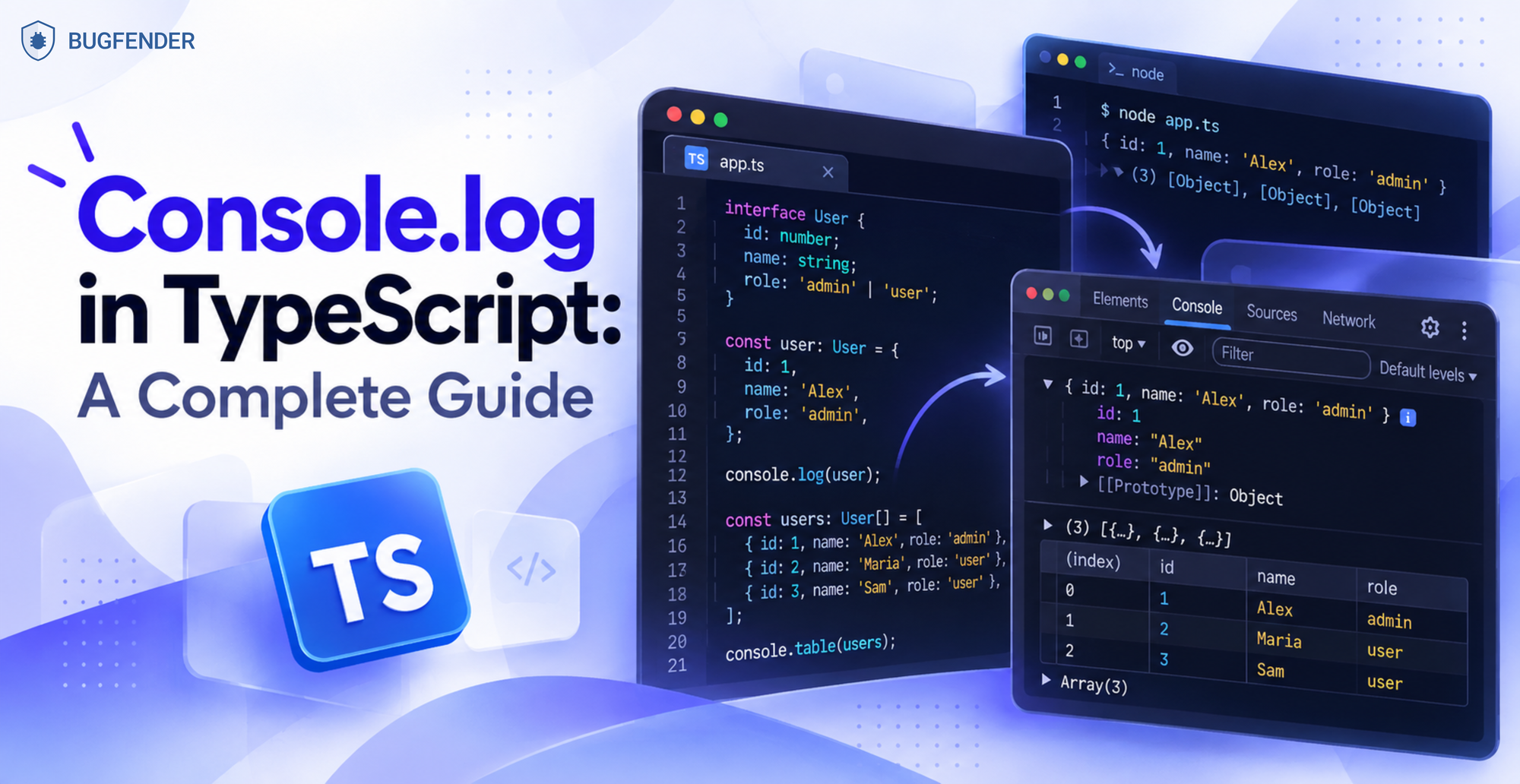
console.log() in TypeScript allows us to print values to the browser console or terminal, so we can inspect our code while it runs. However, the workflow can take some getting used to: in most projects, TypeScript is compiled into JavaScript, which is then executed by a JavaScript runtime.
Whether you’re debugging a React component, a Node.js script or a backend application, it’ll get easier once you’re familiar with these nuances. And that’s what we’re going to cover in this post.
By the end, you’ll be able to:
- Run
console.log()correctly in frontend and Node.js projects. - Choose the right way to run TypeScript for our project.
- Log objects and arrays without losing useful information.
- Troubleshoot missing logs by checking the most common causes.
- Know when to replace
console.log()with a production logging solution.
What console.log does in TypeScript
console.log() prints values to the JavaScript console for debugging. In most TypeScript projects, TypeScript is transformed into JavaScript before the code runs, although it’s important to note that some modern runtimes, such as Node.js, can also execute certain TypeScript files directly.
A key thing to note is that TypeScript doesn’t provide its own logging API. Instead, it performs type checking and provides compile-time features while console.log() itself comes from the JavaScript runtime.
The output appears in different places, depending on where the code runs.
| Environment | Where logs appear |
|---|---|
| React, Angular, Vue, Vite | Browser Developer Tools > Console |
| Next.js | Browser console or terminal, depending on where the code runs |
| Node.js scripts | Terminal |
| Backend applications | Terminal |
| VS Code debugger | Debug Console |
How to run console.log in TypeScript
To run console.log() in TypeScript, we first need to execute the code in the correct environment. The exact steps depend on whether we’re building a frontend application or running a standalone TypeScript script.
1. If you’re using a frontend framework, start the development server. React, Angular, Vue, Vite, Next.js, and similar frameworks compile TypeScript automatically during development. Once the application is running, open Developer Tools > Console in your browser to view the output.
npm run devOnce the application is running, open Developer Tools > Console in your browser to view the output.
2. If you’re running a standalone TypeScript script, execute it with Node.js. Modern versions of Node.js can execute many .ts files directly using built-in TypeScript support:
node yourfile.ts3. If your project requires additional TypeScript features, use tsx. tsx transpiles and runs TypeScript directly, so it’s a convenient option when you want to avoid a separate build step.
tsx yourfile.ts4. If you’re working on an older project, use the existing runtime. Many existing codebases still use ts-node.
ts-node yourfile.ts5. If the code doesn’t run, check for TypeScript errors. Run the TypeScript compiler without generating JavaScript files:
tsc --noEmitThis checks the project for TypeScript errors without producing output files. If errors are reported, investigate them before relying on the code in production.
Logging objects, arrays, and interfaces
In TypeScript, type-only constructs are removed when the code is transformed into JavaScript. Objects, arrays, and function results are therefore logged just as they are in JavaScript.
Interfaces don’t exist at runtime, so console.log() can display an object created according to an interface, but it cannot display the interface itself.
interface User {
  id: number
  name: string
}

const user: User = {
  id: 1,
  name: "Alex"
}

console.log(user)
Output:
{ id: 1, name: 'Alex' }
When logging arrays of objects, console.table() is usually easier to read than console.log().
console.table([user])
Output:
┌─────────┬────┬────────┐
│ (index) │ id │ name   │
├─────────┼────┼────────┤
│ 0       │ 1  │ 'Alex' │
└─────────┴────┴────────┘
Pro tip: Use console.table() whenever you’re inspecting arrays of objects with the same structure. This will display the data in a table, so the values and structure are much easier to compare at a glance.
Other useful console methods
console.log() is the most commonly used console method in TypeScript, but that doesn’t mean it’s always the best option. There are various different methods at your disposal, and the choice depends on whether you’re carrying out a routine debugging procedure or looking for a specific variable.
| Method | Best used for |
|---|---|
console.log() | General debugging and printing values |
console.warn() | Highlighting potential problems without stopping execution |
console.error() | Logging errors with stack traces and error styling |
console.table() | Displaying arrays of objects as rows and columns |
console.dir() | Inspecting objects with expandable properties |
console.group() | Organizing related logs into collapsible groups |
console.trace() | Showing the call stack that led to the current line |
Choosing the appropriate console method makes output easier to scan and reduces the time spent searching through logs.
Why console.log may not be working in TypeScript
If console.log() isn’t producing any output, the problem is usually not the logging function itself but the execution flow or build process. In most cases, the TypeScript code never reaches the console.log() statement.
Before you do anything else, check these common causes:
- The code isn’t running. Make sure the development server or Node.js process is running. If you’re working in a frontend framework, verify that the application compiled successfully and loaded in the browser.
- A TypeScript error stopped execution. Type errors can prevent the code from compiling or running. Check for compiler errors by running:
tsc --noEmit - The
console.log()statement is never reached. An earlyreturn, a failed condition, or an exception thrown before the log statement can stop execution. Try placing anotherconsole.log()earlier in the function to identify where the code stops.
Does TypeScript change console.log?
TypeScript doesn’t change what console.log() prints. By the time the code runs, type annotations have already been removed, so the output is the same as it would be in JavaScript.
Where TypeScript helps is before execution. The compiler catches type errors before the application runs, preventing some bugs from ever reaching a console.log() statement.
For example, if a type error prevents the code from compiling, the log never executes. Fixing the compiler error is more important than debugging the console.log() call itself.
In other words, TypeScript improves the reliability of the code around console.log(), but it doesn’t change how the logging function behaves.
When to stop using console.log in production
console.log() is an excellent debugging tool during development, but it’s less useful once an application is running in production. Local logs only show what happens on our machine, making it difficult to investigate issues affecting real users.
As applications grow, scattered console.log() statements can also create useless clutter, expose sensitive information, and make important events harder to find.
Most teams eventually adopt a logging solution that can:
- Enable or disable logs by environment.
- Add timestamps, severity levels, and useful context automatically.
- Collect logs from real users and devices.
- Search, filter and inspect logs after an issue occurs.
Remote logging makes it possible to diagnose production issues from real users and devices, without reproducing them locally.
We may be bragging a bit here, but our own in-house tool, Bugfender, is specifically designed for remote logging. Try Bugfender for free to collect remote logs, inspect production behavior, and diagnose issues that never appear in the local console.
Frequently asked questions
Can I use console.log() in a TypeScript interface?
No. Interfaces only exist during compilation and are removed before the code runs. You can log objects created from an interface, but you can’t log the interface itself because it doesn’t exist at runtime.
Does console.log() work in React or Angular TypeScript projects?
Yes. Frameworks such as React, Angular, Vue, Vite, and Next.js compile TypeScript automatically during development, so console.log() works the same as it does in JavaScript. The output appears in the browser’s Developer Tools console or, in some cases, the terminal, depending on where the code executes.
Why does console.log() display [object Object]?
This usually happens when an object is converted into a string, for example:
console.log("User: " + user)
Instead, pass the object as a separate argument:
console.log(user)
or
console.log("User:", user)
This allows the console to display the object’s properties instead of converting it into a string.
Can I use console.log() in asynchronous code?
Yes. console.log() works inside async functions, promises, callbacks, and timers just like it does in synchronous code. If logs appear in an unexpected order, it’s usually because asynchronous operations complete at different times, not because of console.log() itself.
Should I remove console.log() before deploying?
For small projects, leaving a few console.log() statements isn’t usually a problem. As applications grow, it’s better to remove development logs or replace them with a structured logging solution so production logs can be filtered, searched, and managed more effectively.
Expect The Unexpected!
Debug Faster With Bugfender

Aleix Ventayol
Aleix Ventayol is CEO and co-founder of Bugfender, with 20 years' experience building apps and solutions for clients like AVG, Qustodio, Primavera Sound and Levi's. As a former CTO and full-stack developer, Aleix is passionate about building tools that solve the real problems of app development and help teams build better software.